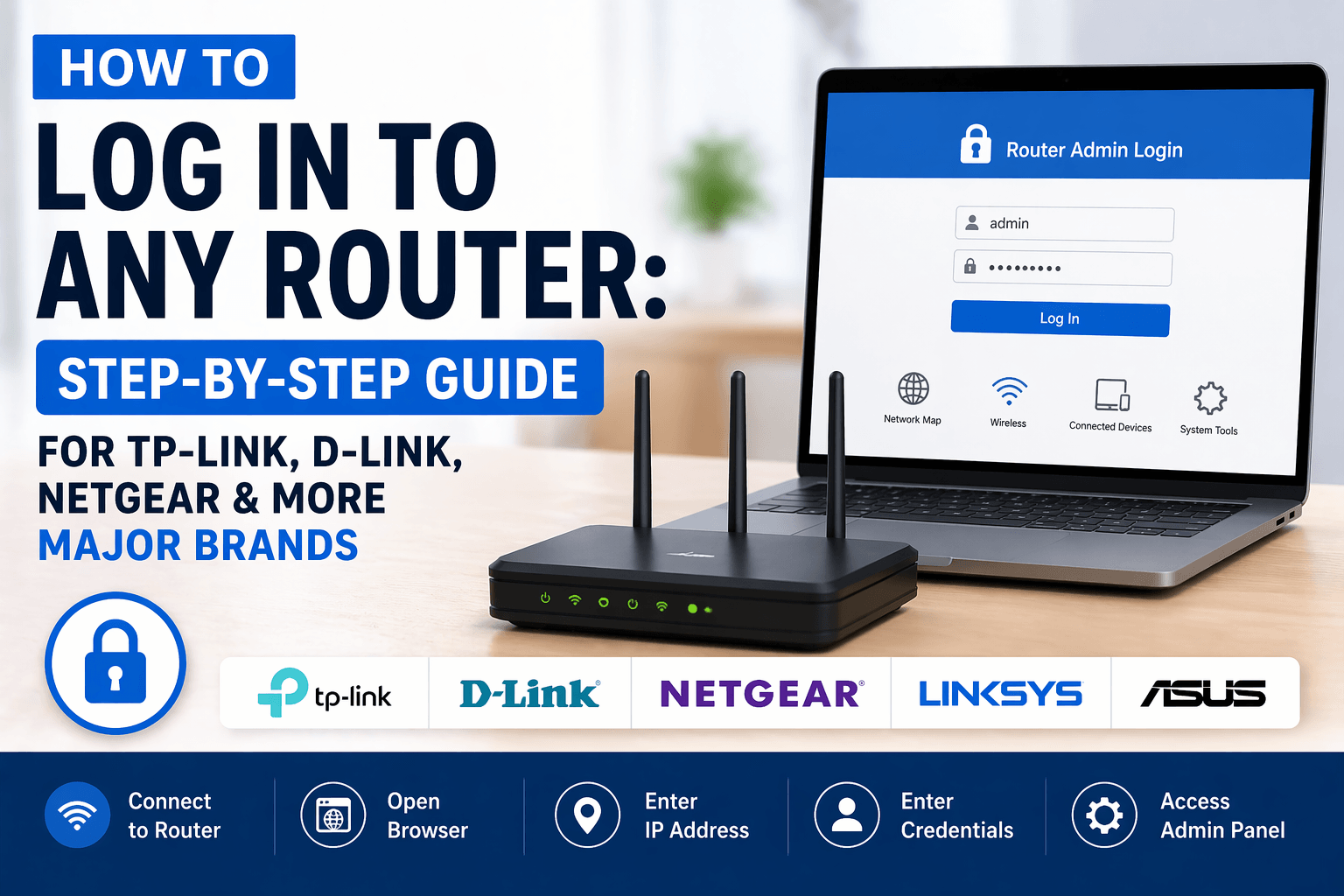
Logging in to any router takes five universal steps: connect to the router’s network through WiFi or Ethernet, open a web browser, type the default gateway IP address (typically 192.168.1.1 or 192.168.0.1) into the address bar, enter the default username and password, then access the admin panel. Moreover, this step-by-step process applies consistently across every major brand, including TP-Link, D-Link, Netgear, Linksys, and ASUS, giving you full control over WiFi names, passwords, firmware updates, and parental controls.
The general router login steps start with identifying the correct default gateway IP address, which varies by brand: 192.168.1.1 for Linksys and ASUS, 192.168.0.1 for Netgear and D-Link, and 10.0.0.1 for ISP gateways like Xfinity. Specifically, you can locate this address by running the ipconfig command on Windows or checking the WiFi details on Mac and mobile devices. In addition, default credentials such as admin/admin or admin/password are printed on a sticker attached to the underside of every router.
Brand-specific router login flows differ in their URLs and default passwords: TP-Link uses tplinkwifi.net alongside 192.168.0.1, Netgear routes users through routerlogin.net, D-Link defaults to 192.168.0.1, while Linksys and ASUS share 192.168.1.1 (with ASUS also offering router.asus.com). Furthermore, mesh systems such as TP-Link Deco (192.168.68.1), eero, and Google Nest WiFi rely on dedicated mobile apps rather than a browser-based interface.
Below, let’s explore every aspect of router login in detail, starting with what router login actually is, walking through the universal step-by-step process, covering brand-specific instructions, answering whether smartphones can replace computers, comparing local versus cloud account access, and finishing with troubleshooting tactics for when you cannot reach the admin panel.
What Is Router Login and Why Do You Need It?
Router login is the process of accessing your router’s web management page, commonly called the admin panel or web interface, through a browser or mobile app using the default gateway IP address and a set of credentials. Specifically, this interface acts as the central control point for every setting on your home network.
To better understand the purpose behind router login, let’s look at what you can actually do inside the admin panel once you gain access.

Once logged in, you control nearly every behavior of your network. For example, you can rename your WiFi (SSID), change the WiFi password, update the router firmware to patch security flaws, configure parental controls to limit screen time, enable port forwarding for gaming or remote access, set up a guest network, activate Quality of Service (QoS) for smoother video calls, and review a list of connected devices to catch intruders.
The reason router login matters so much is security. Default credentials like admin/admin are publicly documented, so any device on your network could access administrative functions unless you change them. In addition, firmware updates often patch critical vulnerabilities that are actively exploited in the wild, and the only reliable way to install them is through the admin panel. Notably, most routers do not push updates automatically, which means a router you have never logged into could be running firmware several years out of date.
According to the TP-Link support documentation, newer routers now require you to create a custom admin password during first-time setup rather than accepting the factory default, reflecting the industry shift toward eliminating weak default passwords that attackers frequently target.
What Are the General Steps to Log In to Any Router?
There are five general steps to log in to any router: connect your device to the router’s network, open a web browser, enter the default gateway IP address, type the username and password, and then access the admin panel. Furthermore, these steps apply to almost every wireless router on the market, regardless of manufacturer.
To make the process foolproof, let’s break down the two pieces of information that cause the most confusion: the default gateway IP address and the default login credentials.
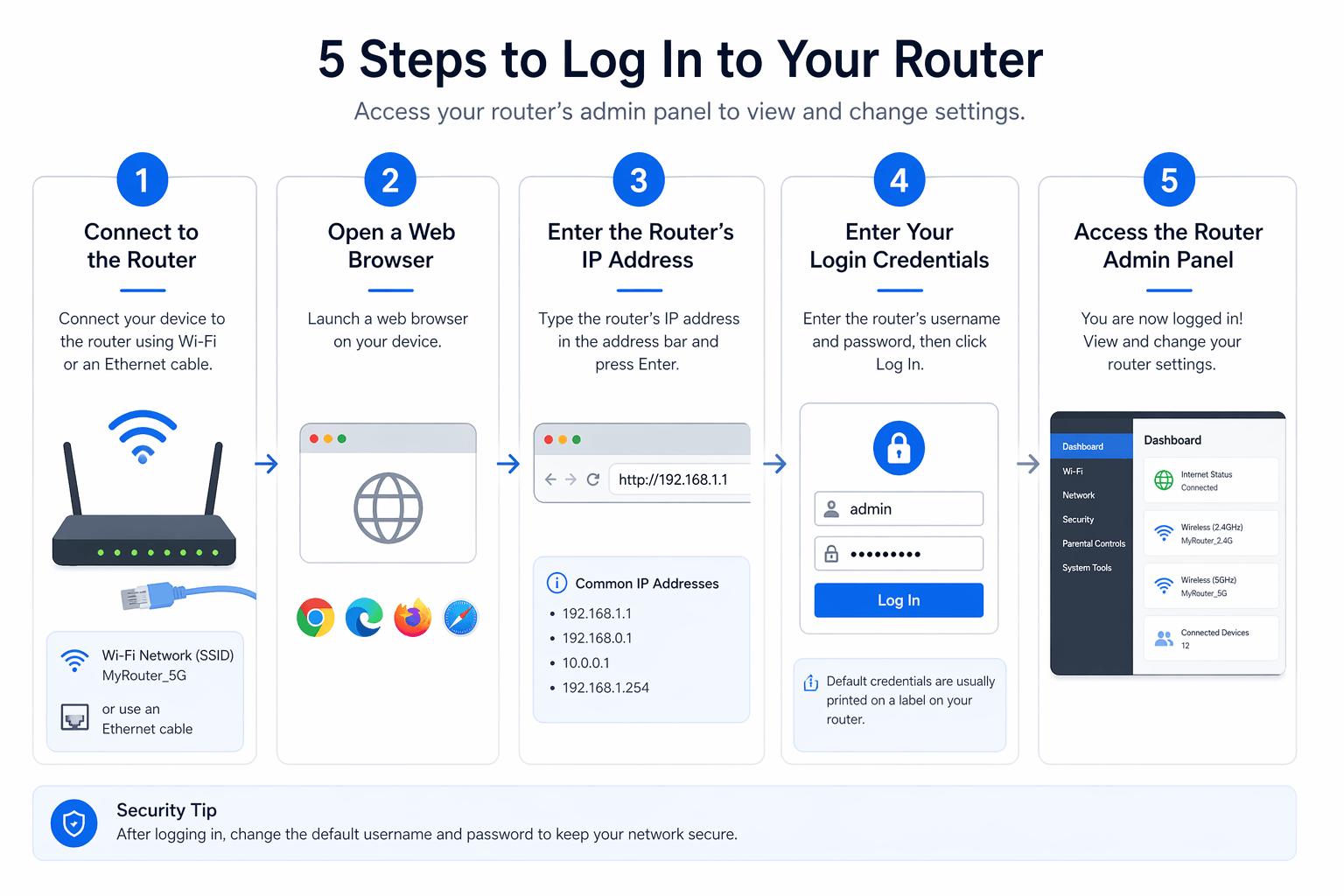
Before starting, make sure your computer, phone, or tablet is physically on the router’s network. A wired Ethernet connection is the most reliable choice, especially during initial setup or when troubleshooting a WiFi issue. Once connected, any modern browser (Chrome, Firefox, Edge, Safari) works. Type the IP address directly into the address bar at the top of the window, not into a search engine, because search engines will redirect you to unrelated websites instead of your local router.
What Is the Default Gateway IP Address and How Do You Find It?
The default gateway IP address is the private network address assigned to your router that lets connected devices reach its admin panel. Most routers use 192.168.1.1 or 192.168.0.1, while ISP-provided gateways like Xfinity often use 10.0.0.1.
You can look up the exact gateway IP for your device using platform-specific tools:
- On Windows: Open Command Prompt and type
ipconfig, then find the line labeled “Default Gateway” under your active connection. - On macOS: Go to System Settings, then Network, select WiFi, click Details, and look for the “Router” field.
- On iPhone or Android: Open WiFi settings, tap your connected network, and scroll to “Gateway” or “Router” under network details.
Once you have the correct IP, enter it into the browser’s address bar exactly as it appears. If the page fails to load, confirm that your device is still connected to the router’s network rather than a mobile hotspot or guest WiFi.
What Are the Default Usernames and Passwords for Router Admin Access?
Default router usernames and passwords vary by brand but follow predictable patterns: admin/admin, admin/password, or a blank username with admin as the password. In addition, newer routers often require you to create your own password during first-time setup rather than accepting a factory default.
The most reliable place to find your exact credentials is the sticker on the back or bottom of the router, which prints the default SSID, login username, and password straight from the manufacturer. If someone has previously changed the password and forgotten it, you will need to factory reset the device to restore the printed defaults.
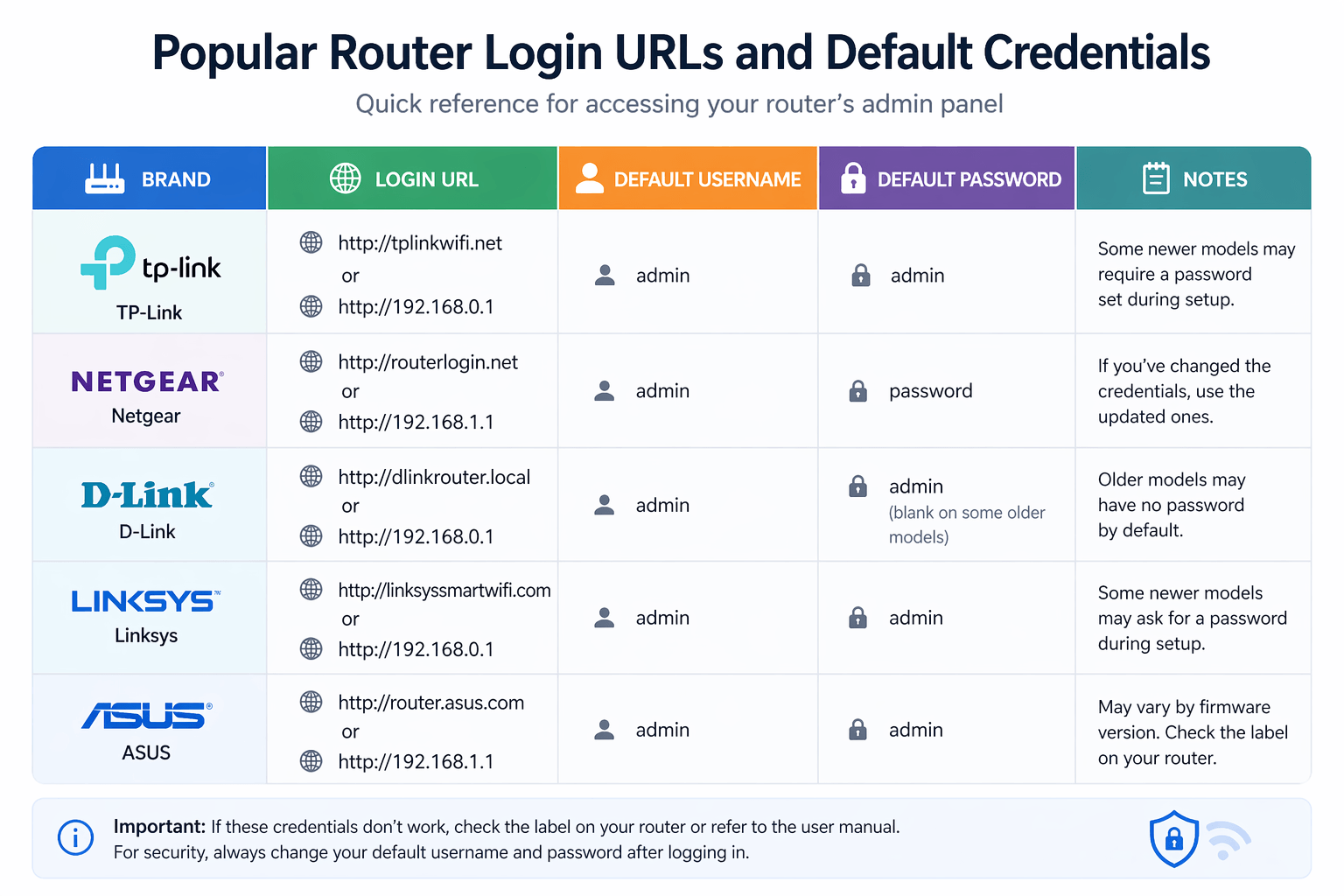
Below is a reference table of default credentials across popular router brands, letting you match the right username and password to your specific model at a glance.
| Brand | Default IP | Default Username | Default Password |
|---|---|---|---|
| TP-Link (older models) | 192.168.0.1 / 192.168.1.1 | admin | admin |
| Netgear | 192.168.1.1 | admin | password |
| D-Link | 192.168.0.1 | admin | (blank) or admin |
| Linksys | 192.168.1.1 | admin | admin |
| ASUS | 192.168.1.1 / 192.168.50.1 | admin | admin |
How Do You Log In to TP-Link, D-Link, Netgear and Other Major Router Brands?
Logging in to each major router brand follows the universal five-step process but with brand-specific URLs, default credentials, and app options. Specifically, TP-Link uses tplinkwifi.net, Netgear uses routerlogin.net, D-Link uses 192.168.0.1, and Linksys or ASUS share 192.168.1.1 as their default entry points.
To give you a complete picture, below are the exact login details and helpful tips for each of the most popular router brands in the world.
How to Log In to a TP-Link Router (via tplinkwifi.net or 192.168.0.1)?
To log in to a TP-Link router, connect your device to the TP-Link network, open a browser, and visit tplinkwifi.net or type 192.168.0.1 (or 192.168.1.1) into the address bar. For TP-Link Deco mesh systems, the default IP shifts to 192.168.68.1, or you can use tplinkdeco.net.
Older TP-Link models accept admin as both the username and password, while newer routers prompt you to create a custom administrator password the first time you reach the login screen. In addition, if you previously linked the router to a TP-Link ID cloud account, you can toggle the login screen to sign in with those credentials instead of the local password. The TP-Link Tether app offers the same login options on mobile, mirroring the browser interface with a simpler dashboard.
If a “Privacy Error” or “Your connection isn’t private” warning appears in Chrome or Edge, this is normal because the router uses HTTP on the local network. Click Advanced, then Proceed, to reach the login page safely.
How to Log In to a Netgear Router (via routerlogin.net or 192.168.1.1)?
To log in to a Netgear router, type routerlogin.net or 192.168.1.1 into your browser while connected to the Netgear network. The default username is admin and the default password is password (all lowercase), both printed on the label attached to the bottom of the router.
Netgear Nighthawk and Orbi routers also support the Nighthawk app and Orbi app on iOS and Android. After installing the app, you log in with your Netgear account and the app auto-detects your router, skipping the browser-based login entirely. Furthermore, the Nighthawk app lets you manage certain settings remotely, such as restarting the router or toggling the guest network from outside your home network.
If routerlogin.net fails to resolve, try the IP address directly, because some browsers block custom hostnames when DNS caching behaves unexpectedly.
How to Log In to a D-Link Router (via 192.168.0.1)?
To log in to a D-Link router, open a browser on a device connected to the D-Link network and enter 192.168.0.1 in the address bar. The default username is admin, and the default password is either blank (leave it empty) or admin, depending on the model year.
D-Link recommends connecting via Ethernet cable during the initial setup to avoid dropped wireless connections while you are configuring the router. Once inside the admin panel, you can change the WiFi name, update the administrator password, configure DHCP settings, and enable parental controls. In addition, many recent D-Link models support the D-Link WiFi app for smartphone-based management, which also uses the same account credentials after a one-time setup.
If 192.168.0.1 does not respond, double-check that no VPN is active on your device, because VPNs frequently reroute traffic away from local IP ranges and prevent the login page from loading.
How to Log In to Linksys, ASUS and Other Major Router Brands?
To log in to Linksys routers, enter 192.168.1.1 in a browser and submit admin for both username and password, or sign in through a Linksys Smart Wi-Fi cloud account. For ASUS, visit router.asus.com or 192.168.1.1 (192.168.50.1 on some newer models) and use admin/admin.
Other major brands follow similar conventions. Tenda uses 192.168.0.1 with admin/admin, Belkin defaults to 192.168.2.1 with a blank password field, and Arris modems from Xfinity and Spectrum rely on 10.0.0.1 with credentials listed on the device label. eero and Google Nest WiFi are exceptions because they bypass browser-based login entirely: eero requires the eero app exclusively, while Nest WiFi uses the Google Home app. Moreover, each mobile app provides feature parity with a web interface, making app-only management a complete solution rather than a limited alternative.
Can You Log In to Your Router Using a Smartphone Instead of a Computer?
Yes, you can log in to your router using a smartphone instead of a computer, and three methods make this possible: typing the router IP into any mobile browser, installing the brand’s dedicated management app, or using the only supported option for mesh systems (the app itself). Notably, smartphone login works on both iOS and Android without any extra hardware.
To demonstrate how flexible smartphone router login really is, let’s look at each method in practical terms.
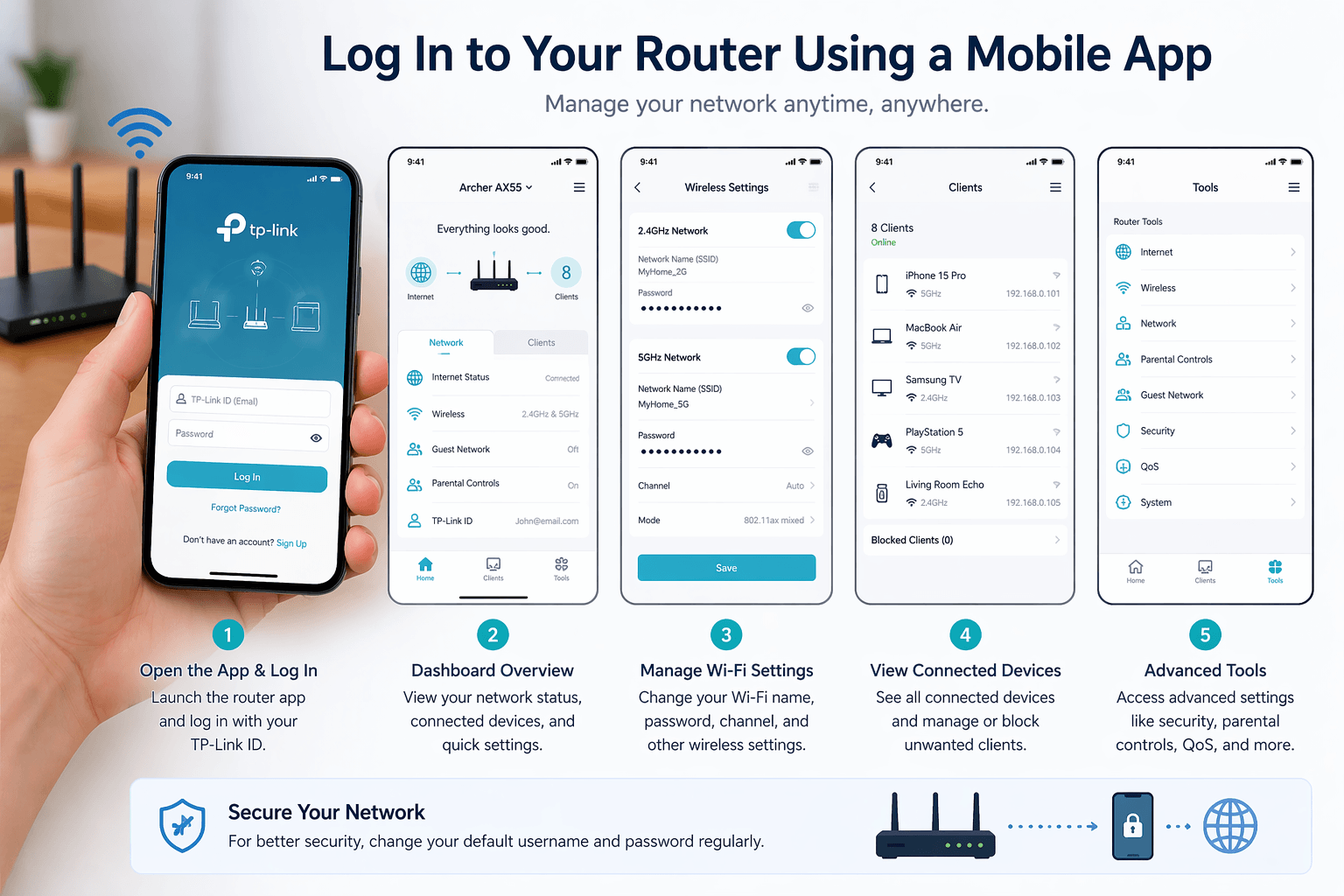
The simplest approach is the mobile browser route. Connect your phone to the router’s WiFi, open Safari on iOS or Chrome on Android, type the default gateway IP into the address bar, and enter the username and password just like you would on a laptop. Every router with a web interface supports this, so it works universally as long as you know the correct IP.
The second approach uses brand-specific apps, which streamline login by remembering your credentials and auto-detecting the router. Netgear offers the Nighthawk app, TP-Link has the Tether app (and Deco app for mesh), ASUS provides the ASUS Router app, Linksys uses the Linksys app, eero has the eero app, and Google Nest WiFi depends on the Google Home app. Furthermore, these apps often unlock features that the web interface does not expose, such as remote monitoring, device pause buttons, and push notifications when a new device joins the network.
According to ModemGuides, mesh systems like eero and Google Nest WiFi cannot be managed through a browser at all, making their dedicated apps the only valid login path, which is why treating smartphone-based login as a secondary option is no longer accurate in 2026.
What Is the Difference Between Local Admin Login and Cloud Account Login?
Local admin login wins at privacy and offline access because it works entirely within your home network without an internet connection, while cloud account login excels at remote management and cross-device syncing. In addition, most modern routers now support both login methods, letting you choose based on your current needs.
To make the distinction clearer, let’s compare the two approaches across the criteria that matter most for everyday users.
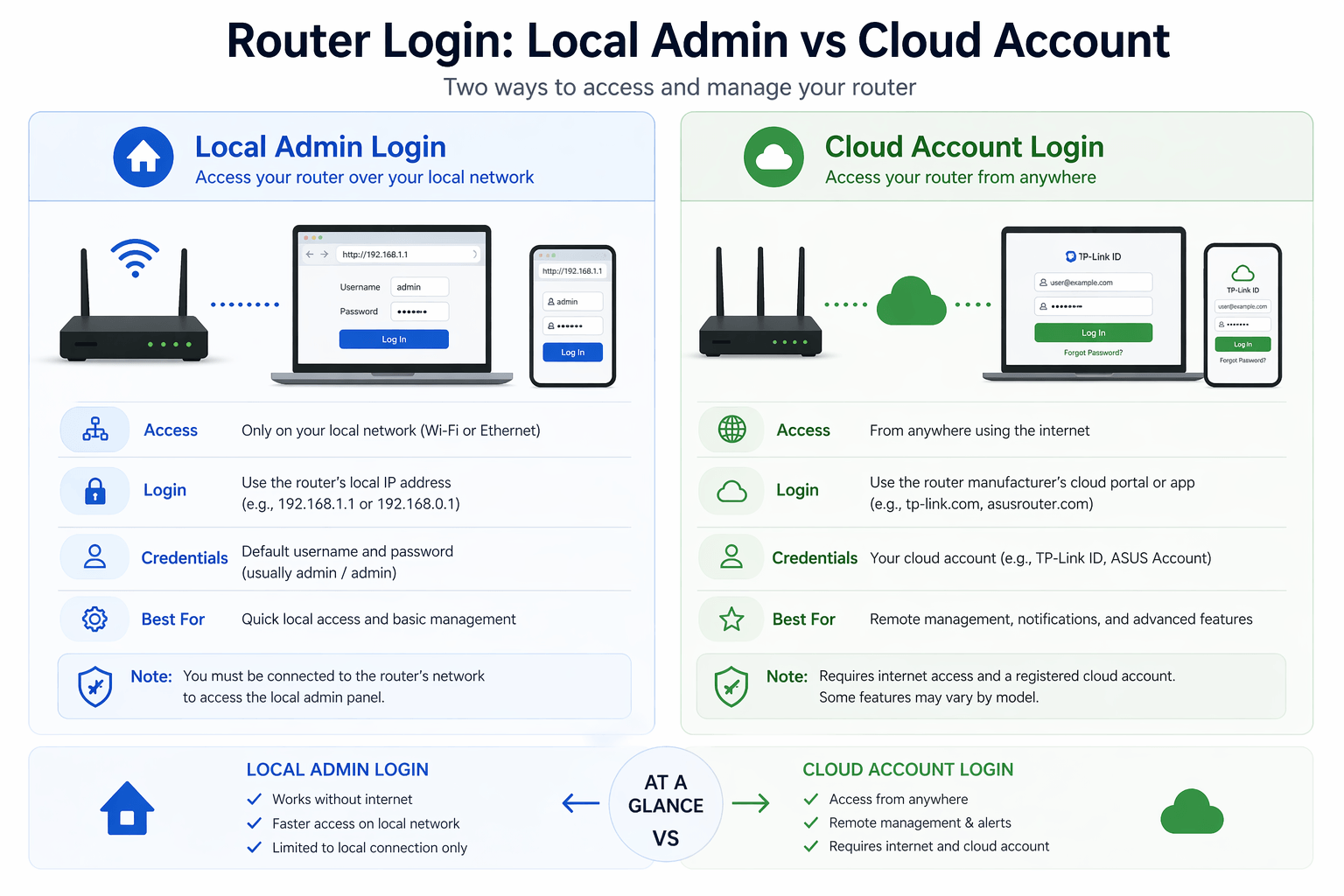
Local admin login is the traditional approach: you type the router IP into a browser while connected to the router’s WiFi, enter local credentials stored on the device itself, and make changes that apply immediately. This method requires no internet connection, no third-party account, and no telemetry sharing with the manufacturer. Specifically, local login is ideal when you are configuring a router for the first time, troubleshooting a broken internet connection, or want to keep your administrative activity fully private.
Cloud account login, by contrast, ties your router to an online identity such as a TP-Link ID, Linksys Smart Wi-Fi account, eero account, or Google account. After signing in once, you can manage the router from any network in the world, receive automatic firmware update notifications, and share control with family members who download the same app. However, cloud login requires an active internet connection and involves trusting the manufacturer with account data, which is a trade-off some privacy-conscious users prefer to avoid.
The table below summarizes the key differences so you can quickly decide which login method fits your situation.
| Criterion | Local Admin Login | Cloud Account Login |
|---|---|---|
| Internet required | No | Yes |
| Remote management | Limited or disabled by default | Fully supported |
| Privacy | Higher (no telemetry) | Lower (manufacturer account) |
| Multi-device sync | Manual per device | Automatic across devices |
| Best for | Initial setup, troubleshooting | Daily monitoring, remote access |
How Do You Troubleshoot Router Login Issues When You Can’t Access the Admin Panel?
When you cannot access the router admin panel, troubleshooting involves checking the network connection, verifying the correct IP address, clearing the browser cache, bypassing HTTPS privacy warnings, and performing a factory reset as a last resort. In addition, ISP-provided gateways sometimes require different recovery steps than standalone routers.
Below are the two most valuable fixes that resolve the vast majority of login failures.
How to Factory Reset a Router Using the 30-30-30 Method When You Forgot the Password?
The 30-30-30 method is a hard reset procedure that restores factory default credentials on most routers: hold the reset button for 30 seconds while powered on, keep holding for 30 seconds while the power is unplugged, then hold for another 30 seconds after power is restored. After the full 90-second cycle, the router reboots with default IP, username, and password from the label, letting you log in again with factory credentials.
For routers where the 30-30-30 method is not needed, a shorter 10 to 15 second press on the reset button is sufficient. Keep in mind that any factory reset erases all custom settings, including WiFi name, WiFi password, port forwarding rules, and parental control profiles.
How Is Logging In to a Standalone Router Different from an ISP-Provided Gateway?
Logging in to a standalone router gives you full administrative control over every setting, while an ISP-provided gateway (such as Xfinity, Verizon, or Spectrum equipment) often redirects you to a limited branded portal with restricted options. Moreover, ISP gateways typically use 10.0.0.1 as the default IP and lock features like DNS settings behind the ISP’s customer account.
If the ISP gateway limits your control, enabling bridge mode disables its routing functions and lets you attach a standalone router behind it, restoring full access to the advanced features the ISP device hides by default.